Logoai

Logo design choices

Is canva logo ai the right way to make your logo?

Canva logo ai is best understood as a workflow, not a guarantee of a finished brand mark: start with a layout, explore visual ideas, then edit the result. Logoai helps you weigh those choices before you commit to a design.

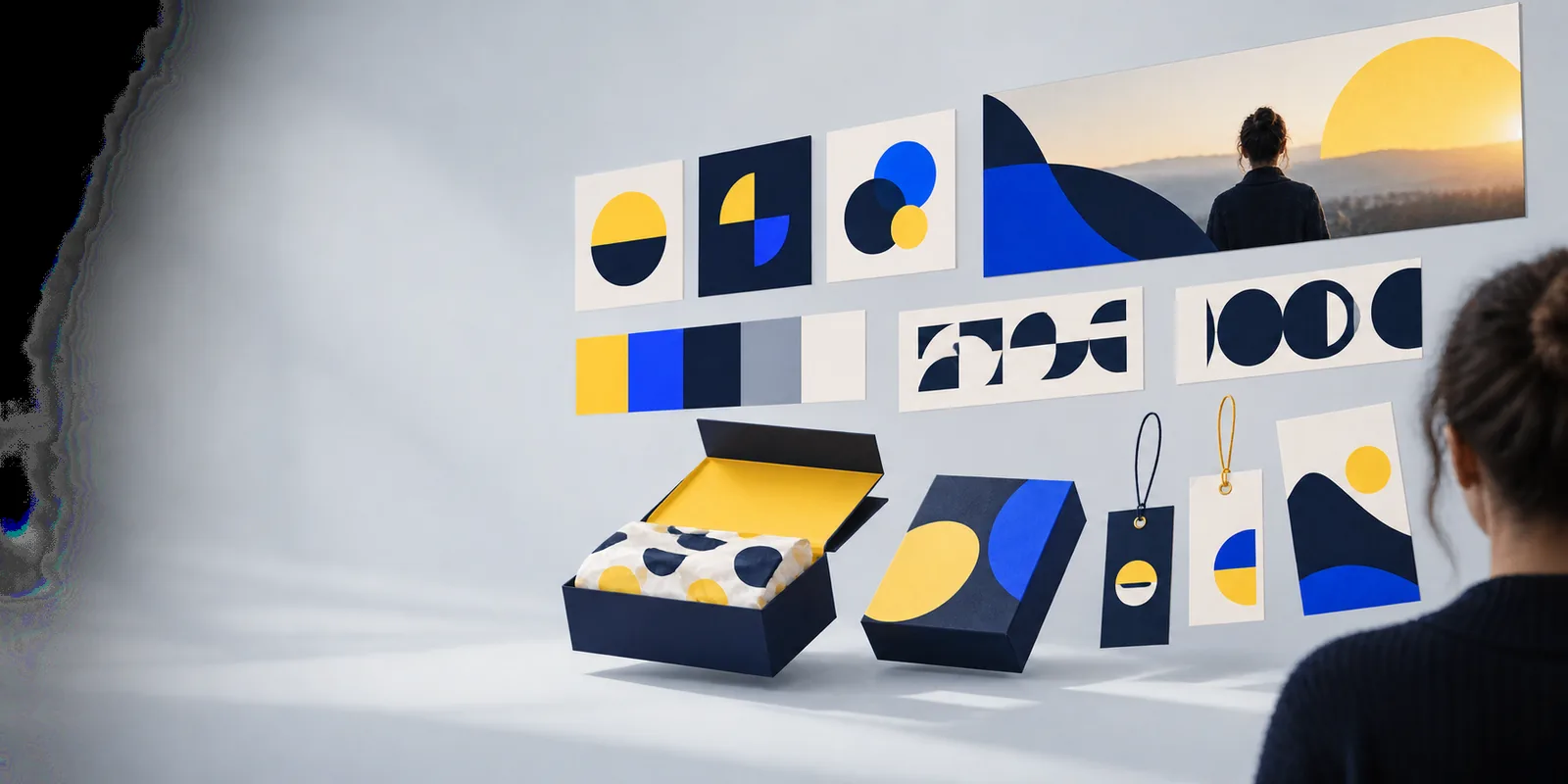
Logo design concepts presented in a visual workspace

The value is a starting point you can refine

The useful distinction is how much of the mark you want to control yourself. A template, an AI-generated image, and a custom-drawn symbol solve different parts of the job.

Canva template route

Choose it when speed and editable layout matter most.

Pros

  • Gives you a structured place to arrange a name, symbol, and colors.
  • Makes it easier to test several compositions without drawing each one.

Cons

  • A familiar template can look generic without substantial changes.
  • A shared graphic may not give your brand a distinctive mark.

AI-generated graphic route

Choose it to explore unusual visual directions, then plan to edit.

Pros

  • Can turn a description of a mood or motif into concepts to review.
  • Provides references for a designer or a later manual rebuild.

Cons

  • Lettering inside a generated image may be misspelled or hard to edit.
  • A polished picture may fail when reduced to an icon.

Custom-drawn mark

Choose it when precise lettering and a distinctive symbol are priorities.

Pros

  • Lets you specify shapes, spacing, and small-size behavior deliberately.
  • Creates a clear path to documenting the final design decisions.

Cons

  • Needs more design effort than selecting a ready-made layout.
  • Still requires a separate check for similarity to existing marks.

Choose a route, then test the result

Treat each direction as a draft. Before publishing, inspect the mark at small sizes, in one color, and beside the names of competing businesses.

1

You already have a brand name and want a usable arrangement quickly.

Begin with a simple template and replace generic elements.

Keep the name as editable text, choose a typeface that stays legible, and change the symbol enough to serve your actual business. Test the arrangement on a narrow mobile header before settling on it.

2

You know the brand mood but cannot picture a symbol yet.

Generate visual references, then rebuild the strongest idea.

Describe the subject, shape, palette, and details to avoid. Judge the outputs as sketches rather than finished logos; redraw promising forms so the final mark can be simplified and adjusted.

3

You need a distinctive mark for long-term business use.

Develop a custom symbol and review it before launch.

Check similar names and imagery in relevant markets, document where each element came from, and seek professional advice if trademark protection is important. Design quality alone does not establish ownership.

Limits and edges of the workflow

Canva's broader design history explains why templates and image generation now sit near each other. Neither replaces the final checks for clarity, permitted use, and distinctiveness.

  1. Canva launches

    The platform makes drag-and-drop design a common starting point for non-designers. That approach is useful for arranging a logo, but the ease of choosing a layout also makes originality worth checking.

  2. Text to Image arrives

    Canva introduces text-to-image generation as another way to create graphics. A generated illustration can inspire a symbol, but detailed scenes and embedded words rarely behave like a clean, scalable logo.

  3. Magic Studio launches

    Canva brings AI-assisted tools together under Magic Studio. The wider toolset expands concept exploration; it does not remove the need to inspect individual elements or read the terms that apply to their use.

  4. Canva acquires Affinity

    The acquisition highlights the difference between quick composition and detailed design work. Whichever tools you use, test your final mark in small, monochrome, and high-contrast settings before release.

Move from inspiration to a clearer visual direction

Bring a short brief: your business name, audience, preferred shapes, and colors to avoid. Explore concepts, then keep the strongest idea only if it reads clearly and fits the usage terms for its elements.

  • Start with the brand name and its intended audience.
  • Favor a simple mark over a detailed illustration.
  • Review usage rights and similar marks before publishing.

Questions about Canva and AI logos

Canva offers design tools that can help you assemble a logo and explore AI-generated visuals. A generated image is not automatically a finished, editable, or distinctive brand mark. Expect to review the lettering, simplify the artwork, and test how it displays at small sizes.

A template is a practical choice when you need control over the name and layout. An AI-generated image is more useful for exploring a visual direction you have trouble describing with existing graphics. You can combine the approaches, but check each element before using the result publicly.

Business use depends on the current terms for the specific tools, templates, and assets in your design. Check those terms, avoid assuming an element is exclusive to you, and look for similar existing marks. If registration or a high-stakes launch is planned, obtain qualified legal advice.

Do not count on text drawn inside an AI image to spell your business name correctly or remain editable. Set the name separately as text and inspect its spacing at the sizes you will actually use. This also makes later corrections much easier.

Start by removing decorative elements that do not carry meaning for your brand. Adjust the type, proportions, and symbol rather than changing only the color. Compare the result with competitors and check whether it remains recognizable without its full-size layout.

Make a logo
Make a logo