Logoai

Logo workflow

How to use an ai logo generator google gemini workflow

Google Gemini can help you develop a logo brief and, where image generation is available, explore visual concepts. Logoai is independent of Google; the prompt below opens an external creative tool, not Gemini.

Opens an external creative tool
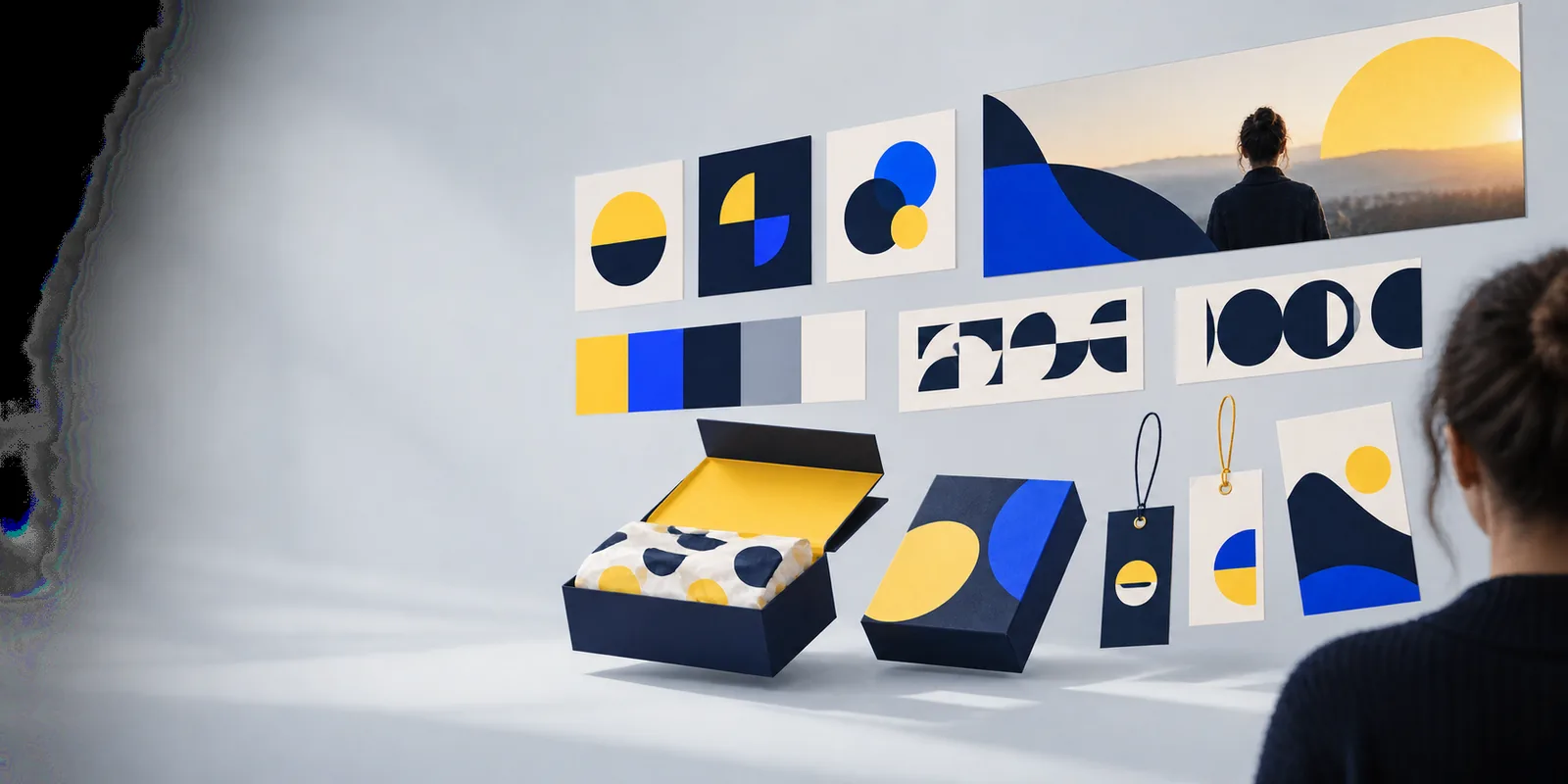
Logo concept imagery for exploring visual directions

Prerequisites

Before trying an ai logo generator google gemini workflow, write down the brand name, audience, preferred mood, and where the mark will appear. Keep a place to record which concepts you want to refine.

One full run-through

Start with a brief, request a small set of distinct directions, select one, and revise it outside the chat if necessary. Judge the result at both sign size and app-icon size before treating it as a logo.

Brief and concept exploration

Best for finding a direction, not declaring a finished identity.

Pros

  • Tell Gemini the business name, audience, tone, colors to consider, and symbols to avoid. Ask for three clearly different concepts, with a short rationale for each.
  • If your Gemini session supports image generation, request a visual of the strongest concept. Otherwise, use its written direction as a brief for a visual tool.
  • Choose a concept based on recognizable shape and fit with the business, rather than decorative detail.

Cons

  • Do not assume a generated image preserves the exact spelling of a brand name.
  • A persuasive written rationale does not prove that a mark is distinctive or usable at small sizes.

Refine and prepare the mark

Best for turning a promising concept into something you can evaluate.

Pros

  • Recreate or edit the chosen mark so its lettering, spacing, and shapes can be inspected closely.
  • Test a single-color version and view it on light and dark backgrounds.
  • Check the proposed name and symbol for conflicts before public use.

Cons

  • A polished concept image is not automatically an editable logo file.
  • Rights, originality, and trademark questions require separate checks; a prompt cannot settle them.

Options table

The right route depends on whether you need ideas, precise lettering, or production-ready artwork. Treat these as different stages rather than interchangeable outputs.

1

You need several possible visual directions.

Use Gemini to develop a brief and compare concepts.

Written descriptions make it easier to contrast symbolism, color, and tone before spending time refining one image.

2

Your brand name must be spelled and spaced precisely.

Set the lettering in an editable design tool.

Manual typesetting lets you correct individual characters and spacing instead of hoping an image model renders text reliably.

3

You need artwork for multiple real-world placements.

Refine a selected concept and test separate sizes and backgrounds.

A mark that looks good in a large preview may lose detail on a small icon, label, or social profile.

What fails

Keep the idea; question the output

Common failures include misspelled lettering, overly intricate symbols, weak contrast, and a mark that resembles an existing brand. Check each issue in the actual contexts where the logo will appear. Logoai can point you toward visual exploration, but the external tool reached through this button is not Google Gemini and its available features should be checked there.

  • Verify every letter in the brand name.
  • Inspect the mark at small sizes and in one color.
  • Check originality and usage rights separately.

Google Gemini logo questions

Gemini can help draft a logo brief and describe possible visual directions. Image-generation availability depends on the Gemini experience you use, so check the controls in your own session. Even when it produces an image, review it as a concept rather than assuming it is finished brand artwork.

Include your exact brand name, what the business does, its audience, a preferred mood, and any colors or symbols to avoid. Ask for distinct concepts rather than several minor variations of one idea. Specify that lettering must be checked separately, because image output may not reproduce text accurately.

Image models can depict letter-like shapes without consistently setting exact text. If the name is wrong, keep any useful symbol or composition and replace the lettering in an editable design tool. Check spelling again after resizing or exporting the final artwork.

Not necessarily. First check legibility, editability, and how the mark works across backgrounds and sizes. Review the applicable tool terms and investigate potentially similar marks before relying on it as a business identity.

Make a logo
Make a logo